Developer Advocacy Handbook (12): Creating Presentation Slides
Author: Christian Heilmann
Translation: Zhuang Qi
A good slide deck is the companion to your talk. It should emphasize what you are saying and get people excited about the topic. In a perfect example, each slide should be able to stand alone, and together they should describe the story you, as the speaker, are supposed to tell.
Demonstrate, Don’t Describe
Once you have your content written and the right tools chosen, it’s time to write your slides. As mentioned before, what you should keep in mind is that your slides are not your talk, but an outline of it. The slides’ job is to keep your narrative flowing and to show the audience where you are in the talk at that point.
Human communication is heavily body language, and you standing there reading your slides, or worse – turning around to watch what’s happening on the big screen, is a communication disaster.
On top of that, it means you can’t concentrate on the audience. Watching the audience and their body language is a large part of being a good speaker.
Fact: A talk isn’t about you celebrating yourself and putting on a show, it’s about bringing information to the audience in an engaging and interesting way. Only when you can see your effect – not when you have to read what you want to say.
So you need to find a single sentence, or even a word, a picture, a screenshot, some charts, or some illustrations to explain and emphasize what you want to talk about in this section of your talk. Instead of overwhelming the audience with things to read and watch, you let them focus on you. You free yourself up in the talk, changing your style if needed to stop the audience from dozing off or leaving.
Let’s look at a simple example from a long time ago. Here’s the information I had:
The way to be interested in the web of data is to distribute ourselves across the web and bring data back to our sites.
The first step is to distribute our content across the web:
-
Upload photos to Flickr
-
Bookmark and tag URLs at Delicious (you see how long ago this was)
-
Write short, punchy updates at Twitter
-
Upload videos to YouTube
-
Link addresses and set driving directions with Google Maps
-
Write resumes and CVs at Xing or LinkedIn
The benefits of this approach are as follows:
-
Data is distributed across multiple servers – even if your own site is offline (for maintenance, for example), the data still exists.
-
You reach users and enter communities that have never been to your site.
-
You get tags and comments about your content from these sites. These can become keywords and guidelines for writing related copy on your main site in the future. You know what people want to hear, not guess.
-
Comments on these sites also mean you start communication channels with web users that happen naturally instead of steering them to a complex contact form.
-
You don’t need to worry about converting image or video assets to web format – the sites built for exactly this purpose do it automatically for you.
-
You allow other people to embed your content in their products, thus hitching a ride on their success and credibility.
The two slides that went with the information above are below.
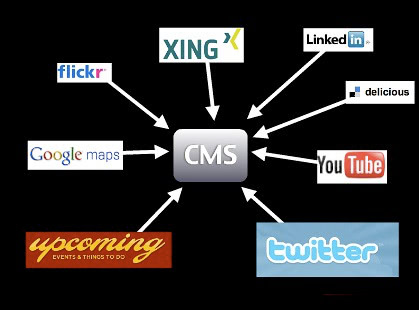
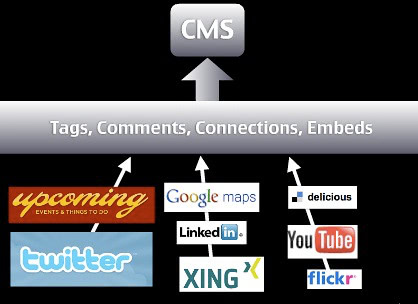
Instead of talking about all these things, I show you, using the company logo as something they already know, with a few arrows showing what I want to bring. I was able to go through each of these services one by one and say what people could do with them. Then the second slide shows the benefits of hitching a ride on the completeness of these services. Add an actual example of what you can do with this method, and you have a good talk section.
Warning: As you can see in this example, distributing your information across the web can be a relatively short-lived experience. Many of these services don’t exist anymore, while my blog continues. An important thing to remember when it comes to your presence on the web is to always keep local copies of your content that you can import into a new service in the future. Also, if any service you use doesn’t give you the option to export your data, that’s a warning sign.
Using and Finding Images
Images can be a great way to convey information. You’ve probably seen beautiful presentations with inspiring images of diving eagles and calm waterfalls, but this quickly becomes clichéd.
I use images for two reasons: to have something unexpected and funny in my slides (yes, mostly cats), or to connect to real-life scenarios.
Example: When giving a security talk, instead of showing a website with security flaws, I show a lock that has been picked, or a door with a broken lock, or something similar to bridge the gap between a hard-to-understand concept and an obvious problem or bad solution. If I talk about bad accessibility, I don’t show ugly websites, but a wheelchair ramp with steps or a wheelchair-accessible toilet behind a door that’s too narrow. Use images to illustrate your point, not to “make it pretty”. Pretty images can be distracting rather than helpful, and for making it pretty, you have color and typography.
Finding images to use is easy these days. There are various resources offering images for free use, and frankly, most phones have a good enough camera that you can take photos yourself. Don’t get bogged down by needing to take the perfect photo, just good enough. Slides are there to help your talk. They’re the wallpaper for your performance.
Example: Say, for instance, you want a photo of a lock. Every photo in this link you can use in your slides, and all you have to do is thank the original photographer by mentioning their name. I usually also include the URL of the photo on Flickr in the slide so other people can reuse the photo if they want to. No need for expensive stock photos of multi-ethnic people in suits high-fiving or shaking hands – dig in and participate in Creative Commons and we all have more interesting slides.
Warning: Make sure you actually have the rights to use the image. While it’s unlikely you’ll be sued for using a photo in your talk, there are cases where people use seemingly “free” resources that are set up to scam artists. You want to get paid for your work, too. So make sure the place you found the image is also its source. The power of screenshots is amazing. Instead of pointing out web resources your audience can check later, make a screenshot of a website and overlay the URL on the slide. This way, people get a visual concept of what the resource looks like and a stronger “Oh, I remember this” feeling when they visit the resource. The same applies to system interfaces – if you show and explain, you reach more people than when you only explain.
Tip: Most operating systems have a built-in editor to add annotations like arrows, highlights, or add some text to images. Make sure to repeat these additions in the alternative description as well.
About Code Examples
Code examples are something many speakers spend too much time getting right. You want a good mix of readability while making it easy for you to change the code. Presentation software isn’t by default suited for showing code. There’s no monospacing, quotes are replaced with “smart” quotes, the indentation is all wrong, you have less space than in your code editor, and many other issues.
However, code examples are important because they show people how they can immediately use what you are talking about, and you bring the topic you cover into a realm they feel familiar with. Showing a few lines of code and what they do in a browser is much more powerful than talking about the amazing features of the product you’re talking about. This goes back to the “What’s in it for me?” question you should always try to answer with your advocacy.
Here’s how I do it. I write code in my normal editor, make the font a bit larger, and take a screenshot. This has several benefits.
-
I have color coding, which increases readability and helps with understanding the code.
-
I have the correct font and code layout, free of the annoyance of “magic quotes.”
-
I keep the code in one place, and changes to the code mean having to create another screenshot.
Providing live demos and downloadable code source packages, as explained in the writing good code examples chapter, and everyone is a winner.
Sound and Video
Sound and video are powerful tools for training and explanation. I find, for instance, that a two-minute screencast of a system is easier for people to find their way around than lots of clever text. You need the text anyway, because not everyone can see and hear videos. In talks, however, I find it’s more of a distraction. Yes, it enriches your slides and catapults you into the post-1990 speaking league, but it’s also可怕的干扰.
As a speaker, you usually want to be the one being listened to. You also use your body language to emphasize the message you want to get across. You point to information on your slides from time to time, but you bring people back to your narrative. If you use music or video in your talk, you create a pause as all the audience’s senses are busy focusing on what’s happening on the screen. It also creates a moment in your talk where you turn around to watch the screen, and you become part of the audience (it’s creepy to face the audience while they’re watching a video).
Given the disruptive nature of multimedia elements, I avoid them as much as possible. They look cool, but you quickly find that they are more trouble than they are worth. For instance:
-
You expect the AV to be able to display video for you and your computer with audio (good luck).
-
You expect the projector to be able to display video.
-
You make your slides impossible to distribute unless you turn it into a video.
-
You lose the rhythm of the talk, essentially creating a break you need to pull people out of again.
This doesn’t mean you can’t talk about videos and screencasts. I usually upload them to YouTube, take screenshots of them, and present them as slides together with the YouTube URL (which I can link to in HTML comments and provide). This way, you can talk about the video without losing 5 minutes of your talk time. You can also explain what’s happening in the video and how it relates to what we’re talking about. And people who can’t watch the video still get to know what’s going on here.
Tip: One exception here is screencasts, which I am a big fan of. Instead of clicking around and typing live data on an interface, record the screen and then talk over it. The distribution problems still happen, but I’ve found that conference setups have fewer problems with silent video than with real “movies” that need sound. Example: Another exception to my rule is when you want to evoke a very emotional response and make people understand something beyond their own experience that’s very human. One example is when I talked about an accessible version of YouTube I created a long time ago. Instead of me explaining what impact these interface changes have, it’s showing people with cognitive disabilities and blind man Kirin being able to enjoy online video. Kirin’s closing line in particular – “That’s the power… that gives me power that I should have had in the first place.” It’s a wonderful emotional moment that brings you back into your talk. If you really feel you need to use video or audio in your talk, then use it at the beginning or the end. This way, you either come in as an observer and turn into the speaker, or go out at the same level as the audience. In most cases, video and audio are extra accessories. And a good talk doesn’t need them. This also applies to transitions and effects.
Don’t Be Fancy
Many speakers enjoy using every transition and animation their presentation software has to offer. But it doesn’t make it better – especially not when they look terrible on a slow computer. Animation rhymes with moderation, which is something you should always keep in mind. You want to make a point with your presentation, not distract the audience from your content with whooshes and sparkles. Use transitions to make your slides flow more smoothly, and use animations if you want to reveal something bit by bit, avoiding jumping around between slides.
Example: I like to use “fade” as the transition effect between my slides, fading in and out smoothly over a second. I only use animation when showing screenshots and showing overlays of zoomed-in small parts, or to focus on a certain part of an interface. Used correctly, animation can be a very powerful tool to make step-by-step processes more obvious. If you are not skilled in usability and design, it will likely look clunky and, yes, tacky, as animation is traditionally used to liven up very boring presentations.
Another problem is that animation can actually have an impact on the flow of your talk. Sometimes you want to speed things up, and if you have long, complex animations hardcoded, you’ll stand there waiting for the slides to catch up to your narrative. Sometimes your AV setup doesn’t show the animation either, which has you waiting for something that never happens.
Example: When I was at a university, my talk was relayed via the university’s video service, which meant a streaming server had to connect to my laptop remotely. Because of VPN issues, animations and transitions didn’t work.
Keep It Short
Keep your talk short and cover only one topic if possible. If you need to cover more than one topic, make sure you have a good narrative flow to avoid them looking stitched together. A talk should bring one message home, and a good one. It may consist of several parts, but the overall story should be obvious. Try to have one main theme for the whole talk and come back to it in each section.
As mentioned before, your slides should only contain what’s necessary and no more. There’s no point in reading from your slides because that makes you one of the audience. I tend to have only one topic or one sentence per slide, and I try to avoid bullet points – especially nested ones. These are old-style presentation styles that bring back unpleasant memories of having to sit through two days of boring training courses.
As mentioned before, an agenda at the front can be a good idea if you cover a lot, but it also allows the audience to pick their favorites and tune out in the middle. This may mean they miss important parts of your talk. If you’re doing a good job as a speaker, the number of slides isn’t an issue, nor is what stage of the overall talk you’re at. People get led through it without noticing. The total number of slides is only limited by your ability to go through them quickly. My rough estimate is one slide per minute, but I’m also a very fast speaker.
Consider the Audience
One example where I break my rule of brevity is when the audience consists of people who don’t have my native language and may have trouble keeping up with my pace and accent. Facing such an audience, having a simple sentence per slide, or even some bullet points, and repeating them can make a significant difference.
-
You make things much easier and thus don’t make the audience feel inadequate or miss important things.
-
You are forced to control your pace, which is very important for such an audience.
-
You allow for better translations in case there is a transcription afterward or live translation at the conference.
In these cases, I also tend to keep my slides more technical. Code is international, and people can repeat it and write about it in their own language.
Another thing to keep in mind when speaking in different cultural contexts is that catchphrases and puns don’t work. Don’t expect the audience to know what you know and to get excited about the things you are excited about.
Example: When I went to Sweden to give a talk, I put in my slides some references to Swedish Chef from the Muppet Show (here in my favourite sketch of all time –”Chocolate Moose”). Nobody got it because in the Swedish version of the show, the chef is apparently not called Swedish. I also threw in a “Have a break, have a Kit-Kat” joke, which is another commercial that only aired in the UK. I only knew it from German television’s “funniest TV ads in the world.” Both references fell like lead balloons and added nothing to the talk. As said at the beginning, a lot of the tips here are for making talks for developer audiences. If you’re speaking mostly to designers, PMs, or management, other strategies must be applied. All in all, it’s a good idea to question the classic way of making talks and slide design.
Company and Conference Templates
In your job as a developer evangelist, you will be asked to use conference or company slide templates. Try to avoid this. The reason is that these templates are almost all targeted at the classic presentation style of a title and dozens of nested bullet points, followed by copyright lines and other legal jargon that nobody cares about.
The reason is that using a corporate or conference template benefits the conference and the company, but distracts from you as the speaker – that’s not you. You, and only you, should own and host the talk because it’s your integrity on the line. Once a conference or company invites you to give a talk for them, they already trust you to get things right, and there’s no need to continue wearing the company hat and putting on a song and dance.
That said, there are benefits to using these templates. In the corporate case, you show the world a consistent look and feel and align yourself with other publications. The question is whether you want this. In my case, not looking like my company’s slides was working against a lot of the bias developers have because developers don’t trust big brands. It’s up to you to decide. In conferences, looking the same as everyone else makes your slides easier to find later, but at the cost of looking the same as everyone else and having a distracting logo on every slide.
The solution is a compromise. If you make the first page of your slides consistent with the others and then switch to your own style, everyone wins. The cover of your slides only matters in two situations:
-
To fill the screen before your talk starts
-
As an eye-catcher when you send out the slides later and display them in blog posts
-
As a preview for the video recording of the talk
Other than that, the slides should take a back seat and support your talk.
Don’t Reuse Without Personalizing
Once you become the speaker for your organization, another very common thing is that you will be handed slides to present. “This has already been done by Stephen in the US office and has been signed off by PR. Stephen can’t come to the conference, so we want you to stand in. Here are his slides, good luck.” This is a sentence you will hear often.
If this happens to you, be firm that this is not the way the job works. You are a speaker – not a parrot. If the slides are not in your language, reflect your approach to a topic, or talk about technology or products you are not sure about or cannot control, you will be on thin ice. As the speaker, you are the one whose performance the success of the talk depends on. If you can’t be yourself, don’t do it.
That said, nothing stops you from using the information on the slides and translating it into your “language.” Instead of flat-out refusing to use the slides, say that you are happy to take over and use the information, but you want to have a talk with the original author and transfer the information. Every speaker has extra information that makes the slides more meaningful and engaging, and you can’t guess these things – you need to hear them “from the horse’s mouth.”
The takeaway is: delivering the talk is half the whole performance. You have to answer questions, and you have to be able to explain the actual implementation of a technology or product. This is something you can only do if you’ve played with it yourself and verified your findings with experts.
Slides become stale if they are reused without being questioned and changed. It makes more sense for a company to keep a fact base and ways to explain a certain product than to keep full slide decks. This way, your message doesn’t become outdated.
Share
Once you’ve finished your slides and are happy with them, don’t forget to share.
This can happen both internally and externally. Sharing your deck in a packaged format within the company is a great way to inform the company about your work and allow people to reuse your way of explaining different products. It’s great training material for other people in the company who are interested in doing more presentations or planning to become developer evangelists themselves.
Upload the slides to your blog, offer them for download, or better yet, upload them to a slide-sharing repository. There are various great tools that allow your slides to get distributed. People can comment on them, share them with friends, embed your slides in conference blog posts or as resources for a certain topic, and much more. They’re like photos at Flickr and videos at YouTube.
Sharing your slides is something many people in the audience will ask you to do, and it will get you known as a speaker. People may stumble on your slides elsewhere and get to know you through that.
Other Speaking Tips
Here are a few tips that have worked very well for me in the past. Since you are not me, you might have to adjust them a bit. So here’s what I do when I give a talk.
Introduce Yourself
No matter how brief, breaking the initial barrier. You are no longer the unreachable person on stage or at the table, you are a normal human being. Explain why you are qualified to talk about the matter at hand. Even better, explain how you picked this topic and why you want to talk about it. Then put the self aside – people are there for information, not to watch you sing and dance.
Bring Some Humor
Humor is important to keep long talks interesting. I like to throw in something people don’t expect to keep both me and them awake. Humor also makes us more approachable. We tend to use humor to deal with things that scare us. Also, humor creates memorable moments – it’s a structured way to provide signposts in your talk. Be careful, though.
Edgy humor might work for stand-up comedians, but quoting their material will get you in big trouble. If you use humor, make sure you don’t offend anyone. What you sometimes think is a funny way to describe something can be deeply offensive to someone with a certain illness or who has had a terrible experience. The best way is to ask a couple of people who don’t like you what they think of the joke and whether it adds some levity or fun. Also remember that not all humor translates to other cultures and languages.
Use Real-World Examples
I like to present real-world examples and comparisons. The reason is that they make theoretical and hard-to-grasp data more human. Real-world comparisons also allow for emotion – and emotional reactions are powerful and make us remember.
Example: If you talk about code standards and the re-use of code without proper review, a good example to mention is the Ariane 5 disaster. This rocket self-destructed 37 seconds after launch when it veered off its intended flight path. The reason was the re-use of code that was used to launch Ariane 4, which had different flight specifications. $370 million was lost because of this error.
Control the Pace
Speaking at the right pace makes you easy to understand. If you appear rushed, the audience will feel stressed. Trying to keep up is a terrible feeling and makes us feel inadequate. So speak slowly, meaningfully, and focus on getting things across. Pauses are good. They let the audience take in the information and digest it in the way they’re most familiar with.
Tip: This is most important when your talk is being live-transcribed, or translated into another language or sign language. In such cases, it’s also important to prepare a list of special terms that should not be translated for the translators.
Avoid “Hello World”
“Hello World” examples are easy to show. They are also useless because they teach a syntax, not the concept of a language or solution. There is no personal value in “Hello, World.” We should teach how to solve problems and get things done. I have yet to be asked to make a “Hello, World” in a professional product.
It’s much better to have a real production example as a base:
-
“This is what we have to create, here are the specs”
-
“This is the end result”
-
“This is what we used to deliver this work”
-
“… and here’s how you can do it yourself!”
Write for what people are asked to do, not what you expect them to do for you.
Keep It Fresh
I always try to provide fresh material. I hate reusing talk and training materials. The least I do is bring some new, fresh angle. Look at what’s hot at the moment, research it and add it to the lecture. It shows that your content isn’t just good, but relevant at this moment. It also means for experienced conference-goers that you won’t bore them with stuff you’ve talked about before. Experienced conference-goers are also avid bloggers and Twitter users – so this can only be a good thing.
Reprinted with permission: Developer Relations »